
Cancel a quote or order in Business Hub when a sale isn't going to proceed, whether a customer changes their mind, a copyright issue turns up in the artwork, or the job is no longer needed. Cancelling works at any stage of the production process, and if a payment has already been made, you can apply a refund as part of the same action so your production, payment, and customer records all stay in sync.
In This Article
- Prerequisites
- Why use this feature?
- Step 1: Open the quote or order
- Step 2: Start the cancellation
- Step 3: Apply a refund and confirm
- Best Practices
- Troubleshooting
- FAQs
- Additional Resources
Prerequisites
- You must have Administrator and/or Sales Manager permission to use this feature.
Why use this feature?
Quotes and orders don't always make it to completion. A customer may change their mind, request artwork that turns out to infringe copyright, or simply no longer need the job. Cancel Quote and Cancel Order give you a controlled way to close these out in Business Hub, rather than leaving them sitting open or deleting them outright.
Cancelling is retained by the system as the final step in that quote or order's workflow. If you check Cancel with refund, DecoNetwork processes a refund at the same time, and credit card payments are credited back automatically. Cancelling an order also triggers an automatic email to the customer, so they're notified without you having to contact them separately. Because cancellation works at any stage of production, it stops the order from continuing through decoration, shipping, or fulfillment the moment you confirm it.
- Stop an order from continuing through production or fulfillment, at any stage
- Keep payment records accurate by processing refunds as part of the cancellation itself
- Automatically notify the customer when their order is cancelled, reducing manual follow-up
- Keep a record of cancelled quotes and orders instead of deleting them
Step 1: Open the quote or order
- Log in to your DecoNetwork website.
-
Go to Business Hub → Quotes or Business Hub → Orders, depending on which one you need to cancel.
Navigate to Quotes from the Business Hub menu.
Navigate to Orders from the Business Hub menu.
-
Click View to open the quote or order, or click anywhere else in that row. Avoid clicking the customer name, since that opens the customer record instead.
Click View, or anywhere else in the row, to open the quote or order.
The quote or order opens, showing its details along with the Cancel Quote or Cancel Order action.
Step 2: Start the cancellation
-
Click the Cancel Quote or Cancel Order action.
The Cancel Quote action on an open quote.
The Cancel Order action on an open order.
A confirmation popup appears asking if you're sure you want to cancel.
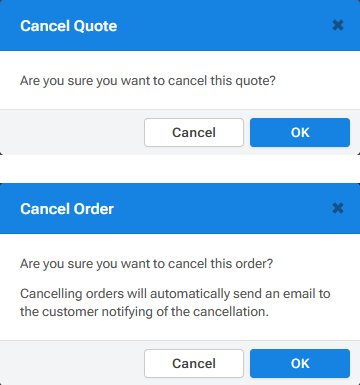
The confirmation popup shown when no payment has been made.
If a payment has already been made against an order, the popup also includes a Cancel with refund checkbox.
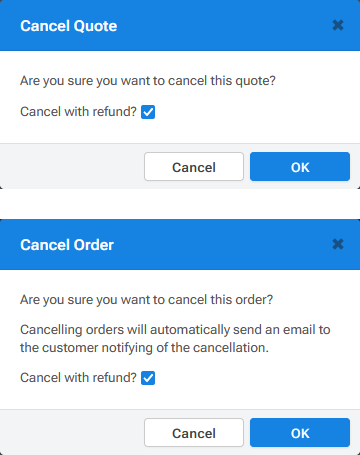
The confirmation popup shown when a payment has already been made, including the Cancel with refund checkbox.
Step 3: Apply a refund and confirm
- If a payment has been received against an order, tick Cancel with refund to process a refund as part of the cancellation.
-
Click OK to confirm.
The quote or order is cancelled. If Cancel with refund was checked for an order, a refund is processed at the same time; for credit card payments, the amount is credited back to the card automatically. If you cancelled an order, DecoNetwork emails the customer to let them know it's been cancelled.
Note: The Cancel with refund checkbox only appears for an order when a payment has already been recorded against the order. If you cancel without it, or without a payment on record, you can still apply a refund afterward. See Add refund to quote/order.
Best Practices
- Check whether a payment has been received before cancelling, so you know to expect the Cancel with refund checkbox and can decide how to handle it.
- Use Cancel with refund at the time of cancellation rather than processing the refund separately afterward, so the cancellation and the refund stay tied together in one step.
- Cancel rather than delete a quote or order you want a record of. Cancelling preserves the record while stopping it from continuing through the workflow.
- If the cancellation reason needs more explanation than a brief note, such as a copyright issue with submitted artwork, follow up with the customer directly as well.
Troubleshooting
Problem: A refund wasn't applied after cancelling an order.
Cause: The Cancel with refund checkbox wasn't ticked before clicking OK, or it didn't appear because no payment was recorded against the quote or order.
Solution: Use Add refund to quote/order to apply the refund afterward.
Problem: The Cancel Quote or Cancel Order action isn't available.
Cause: Your user account doesn't have Administrator or Sales Manager permission.
Solution: Ask an administrator to grant the required permission, or have them cancel the quote or order on your behalf.
Problem: Clicking a row opens the customer record instead of the quote or order.
Cause: The click landed on the customer name, which links to the customer record rather than the quote or order.
Solution: Click View, or click anywhere else in the row.
Problem: A customer says they weren't notified that their order was cancelled.
Cause: The cancellation email may have landed in spam, or the email address on the customer's account may be incorrect or out of date.
Solution: Confirm the customer's email address on their account, and ask them to check their spam or junk folder.
FAQs
Can I cancel an order at any stage of production?
Yes. Cancel Order works regardless of what stage of production the order is currently in.
What's the difference between cancelling a quote and cancelling an order?
The steps are the same. Only the action label changes, to Cancel Quote or Cancel Order, depending on which one you're working with.
Does cancelling delete the quote or order?
No. Cancelling changes its status rather than deleting it, so you keep a record of it while stopping it from continuing through production or fulfillment. See Delete Orders in Business Hub if you specifically want to delete instead.
What happens to the refund if the payment wasn't made by credit card?
DecoNetwork automatically credits credit card payments back to the card when Cancel with refund is checked. For other payment methods, confirm with your payment provider that the refund has been completed on their end as well.
Can I still refund an order after I've already cancelled it?
Yes. See Add refund to an order to apply a refund to an order that's already been cancelled.
Additional Resources
Still have questions? Use the Search Tool at the top of the page to find more related guides. Need help? Click the icon to submit a support ticket – our Client Services team is ready to assist!
Comments
1 comment
Can we add a reason to refund the order? Sometimes clients will say they don't understand why an order was cancelled
Please sign in to leave a comment.