
You can mark a job as partially complete to indicate that production has been partially completed for that particular job. For instance, if the quantity ordered for a particular job is 5 items and you have only completed production of 2 items at the end of the workday, you can mark the job as partially complete.
In This Article
- Prerequisites
- Why mark a job as partially complete?
- Step 1: Open the production job
- Step 2: Record the items produced
- Best Practices
- Troubleshooting
- FAQs
- Additional Resources
Prerequisites
- You must have Administrator, Production Manager, or Production Team permission to use this feature.
- The job must have the status Awaiting production.
Why mark a job as partially complete?
Marking a job as partially complete lets your production team record the items already produced while the remaining items continue through production.
Step 1: Open the production job
- Log into your DecoNetwork website.
-
Browse to Business Hub → Production.
Business Hub Production page. Click the image to enlarge.
-
Click view to load the job you want to mark as partially complete.
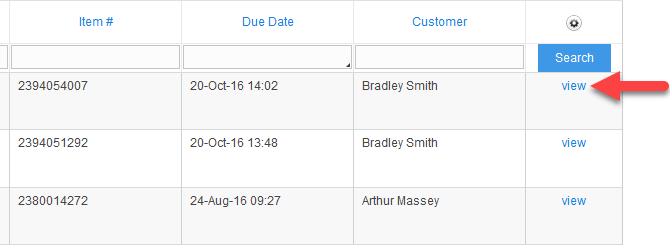
View command for opening a production job.
Step 2: Record the items produced
-
Click Mark as partially complete.

Mark as partially complete action for the production job.
-
Enter the number of items produced for each size ordered.
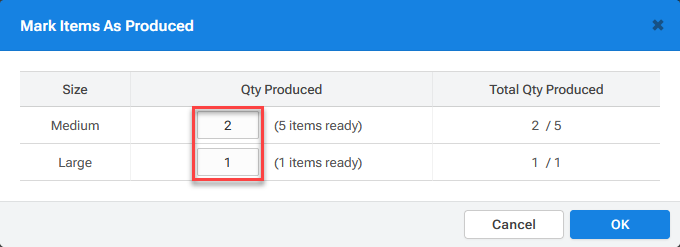
Mark Items As Produced popup for entering quantities by size.
-
Click OK.
The quantity produced is recorded for the job.
Note: Marking a job as partially complete records the quantity produced but does not automatically ship those items. If partial shipping is enabled, completed items can be shipped separately while the remaining items continue through production. For more information, see Enable partial shipping and Mark order items as Shipped from an Order’s Production Tab.
Best Practices
- Check the quantity produced for each size before clicking OK to keep production records accurate.
- If completed items need to ship before the rest of the job, check that partial shipping is enabled and record shipping separately.
Troubleshooting
Problem: The Mark as partially complete action is not available for a job.
Cause: The job does not have the status Awaiting production, or your account does not have Administrator, Production Manager, or Production Team permission.
Solution: Open the job from Business Hub → Production and confirm its status is Awaiting production.
FAQs
Does marking a job as partially complete automatically ship the completed items?
No. This action records the quantity produced. Shipping must be recorded separately, and partial shipping must be enabled to ship completed items before the rest of the job.
Additional Resources
Still have questions? In your DecoNetwork Admin, use the Universal Search box in the top bar to find more related help guides. Need more help? Click the icon next to the search box to open the help menu and submit a support ticket. Our Client Services team is ready to assist!
Comments
0 comments
Please sign in to leave a comment.