
DecoNetwork allows you to create powerful Design Templates that customers can personalize using the Online Designer. Design templates provide a starting point for customers who want custom products but don’t have their own artwork, making it easier for them to place orders with confidence.
In addition to the growing library of professionally designed templates released by DecoNetwork, you can build your own templates using the Design Template Builder. These templates can include clipart, text, and personalization rules that control how customers interact with the design, ensuring the final result matches your intended layout and production requirements.
In this article
- Prerequisites
- Why use design templates
- Step 1: Create a new design template
- Step 2: Add clipart and text layers
- Step 3: Configure personalization behavior
- Step 4: Finalize and save the template
- Best-practice tips
- Troubleshooting
- FAQs
- Additional resources
Prerequisites
- Admin access to your DecoNetwork account
- Permission to manage Stock Designs
- Clipart and fonts you are licensed to use
Why use design templates
Design templates help streamline custom ordering while improving the customer experience.
- Give customers a ready-made starting point when they don’t have artwork
- Ensure designs stay within your intended layout and production constraints
- Reduce design back-and-forth by controlling how text and graphics behave
- Expand your branded design offering beyond DecoNetwork’s default templates
Step 1: Create a new design template
-
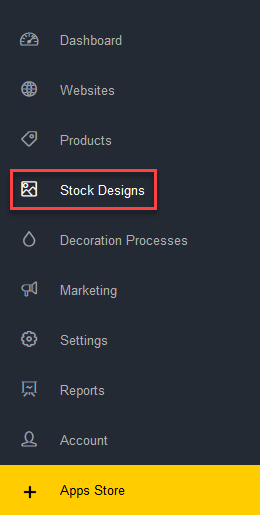
In Admin, go to Store Designs → Stock Designs.
-
Click Add Design → Create Template.
-
In the Design Template Builder, begin creating your template.
Step 2: Add clipart and text layers
Design templates are built by layering clipart and text elements.
-
Add clipart elements to your design.
- Upload vector files whenever possible.
- Vector artwork allows customers to change colors easily.
-
Add text layers to the design.
- Select the font you want customers to use.
- Define whether the text can be arched, warped, or remain straight.
Step 3: Configure personalization behavior
Personalization settings control how customers can edit the template in the Online Design Tool.
-
Configure text behavior:
- Set maximum width or allow text to expand longer.
- Control how text resizes when edited.
-
Define how clipart and text layers react to customer changes.
- Test the design behavior to ensure it edits exactly as intended.
Step 4: Finalize and save the template
-
Enter a clear Name and Category for the design template.
Click the image to enlarge.
- Configure Keywords to improve search results on your website.
- Save the template to make it available in the Online Design Tool.
Best-practice tips
- Use vector clipart for maximum color and scaling flexibility
- Limit text editing options to preserve layout integrity
- Use descriptive keywords to help customers find designs faster
- Create templates that align with your most popular products
Troubleshooting
My design template doesn’t appear in the Online Design Tool
- Confirm the template is saved as a Design Template (not standard clipart).
- Check that the template is enabled and available as a Store Design.
Customers can’t change colors on clipart
- Ensure the clipart was uploaded as a vector file (for example, SVG or AI).
- Ensure editing and color change is enabled.
- Raster images (JPG, PNG) do not support color changes.
Text stretches or breaks the layout when edited
- Review text personalization settings in the Design Template Builder.
- Set a maximum width or restrict how text can expand.
- Confirm warp or arch settings match the intended design behavior.
Edits don’t behave as expected in the editor
- Test the template in the Online Design Tool after saving changes.
- Check layer ordering to ensure text and clipart interact correctly.
- Adjust personalization rules to better control resizing and positioning.
FAQs
Can customers upload their own artwork instead?
Yes. Design templates are optional and provide a guided alternative when customers don’t have artwork.
Are DecoNetwork’s built-in templates still available?
Yes. DecoNetwork continues to release new professionally designed templates, which can be used alongside your custom templates.
Do design templates work with the Online Design Tool?
Yes. Design templates are specifically built for use in the Online Design Tool and define how customers can personalize designs.
Additional resources
- Using the Designer in the Storefront
- Managing Stock Designs in DecoNetwork
- Uploading Clipart and Artwork Files
Still have questions? Use the Search Tool at the top of the page to find more related guides. Need help? Click the icon to submit a support ticket – our Client Services team is ready to assist!
Comments
0 comments
Please sign in to leave a comment.