
Volume discounts help you encourage larger orders by reducing the per-unit price as quantity increases. In DecoNetwork, you can build tiered discounts (e.g., 10% for 10–49 items, 20% for 50+), and control how quantities are counted (per line item, per order, or by matching designs/screens).
Note: Volume discounts can be used as a global default for all products, or applied more selectively (e.g., by product group if the Product Groups app is enabled, or product-by-product).
In this article
- Prerequisites
- Why use volume discounts?
- How to configure volume discounts
- General tab settings
- Discount levels
- Availability tab settings
- Best-practice tips
- Troubleshooting
- FAQs
- Additional resources
Prerequisites
- You must have administrator access.
Why use volume discounts?
- Increase average order size: customers are incentivized to add more units to reach the next tier.
- Reward repeat and bulk buyers: provides predictable savings for teams, events, and large reorders.
- Stay competitive: tiered pricing matches common expectations in decorated apparel and promo products.
- Control margin intentionally: you choose whether discounts apply to base product pricing only, or include decoration pricing.
Tip: If your decoration costs don’t scale down with quantity (e.g., setup time, art time), consider limiting discounts to base price only to protect decoration margins.
How to configure volume discounts
Step 1: Open Volume Discounts in Admin
- Log into your DecoNetwork Website.
- Go to Admin → Products.
-
Select Volume Discounts.

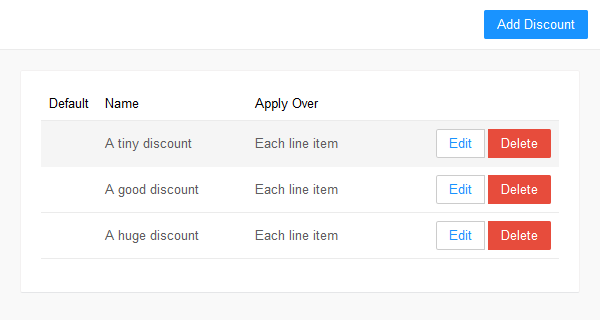
The main work area lists your presently configured volume discounts, which may be edited or deleted by clicking their respective buttons. In the top bar is a button to add a volume discount.
Step 2: Add or edit a discount
-
Click on the Add Discount button to configure a new discount or click on the Edit button beside an existing discount to edit it.
The discount configuration screen is displayed.
Click the image to enlarge.
-
Configure the discount as required.
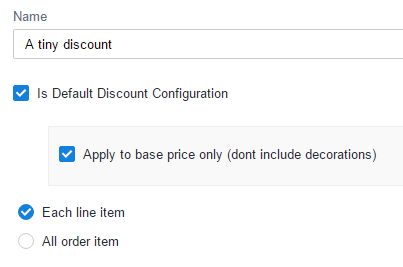
Each volume discount shares a common configuration screen, be it a new volume discount or an existing one. The configuration screen contains two tabs.
General Tab
Use the General tab to define what the discount is, how it’s calculated, and what quantities it considers.
Configure discount
-
Name
How: Enter a clear label for the discount (e.g., “Blank Tees – Bulk Pricing” or “Team Orders 10+”).
Why: Names help admins quickly identify the purpose of each discount, especially if you manage multiple tiers for different catalogs or customer types. -
Is Default Discount Configuration
How: Enable this to make the discount a global default that applies to all products.
Why: Use this when you want consistent bulk pricing across your catalog without having to assign discounts product-by-product. It’s ideal for storewide promotions or simple “buy more, save more” pricing models. -
Apply to base price only (don’t include decorations) (available when Default is enabled)
How: Enable this to apply the volume discount to the base product price only, excluding decoration charges.
Why: This protects your decoration margin when decoration costs do not reduce proportionally with quantity (e.g., setup effort, art time, machine time). It’s a common approach when you want to discount the garment but keep decoration pricing stable. -
Discounts apply over
Choose how DecoNetwork counts quantities to decide which tier applies:-
Each Line Item
How: Counts quantities within each line item separately to determine the tier.
Why: Best when each product/design should earn its own discount based on its own quantity (e.g., 24 of Product A gets a tier, but 6 of Product B does not). -
All order items
How: Counts all eligible quantities across the entire order to determine the tier.
Why: Encourages larger mixed carts by allowing customers to reach discount tiers by combining different products in one order. -
All order items using same design*
How: Counts quantities across line items that use the same set of designs and/or screens to determine the tier.
Why: Useful when production savings come from repeating the same design/screens across multiple products (even if the products differ).
-
Each Line Item
*Important: As of DecoNetwork version 8.609, “same design” volume discounts are not supported for new users. Existing users already using this feature retain functionality while improvements are made.
How “same design” matching works
- Match requirement: For a discount to apply, the set of designs and screens on one item must match the set on another item.
- What can differ: The discount may still apply even if the size and placement of the same design differs between items.
- What breaks the match: If text is added to an item that otherwise uses the same design, it breaks the match and the discount will not apply.
Discount levels
Discount levels define the quantity thresholds (“More Than”) and the discount amount (“Discount”) applied when a customer reaches that tier.
-
How: Click Add Discount Level to create a new tier. Use:
- More Than to set the minimum quantity required, and
- Discount to set the discount (e.g., 10%).
- Why: Tiers let you reward larger purchases with progressively better pricing – helpful for increasing order size without discounting smaller orders.
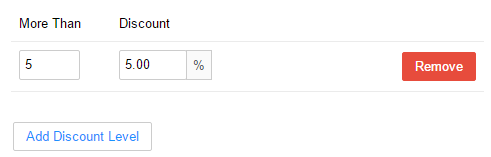 Use Discount Levels to build tiered pricing (e.g., 10% at 10+, 20% at 50+).
Tip: Keep tiers simple (2–4 tiers) so customers can quickly understand the savings.
Availability Tab
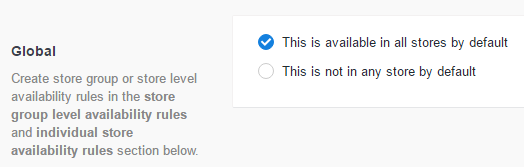
Use the Availability tab to control which stores the discount automatically applies to.
Note: These settings automatically apply the discount in the stores you specify. They do not make the discount available as a store-level toggle for affiliates to turn on/off.
Global
Use the Availability tab to control which stores the discount automatically applies to.
Note: These settings automatically apply the discount in the stores you specify. They do not make the discount available as a store-level toggle for affiliates to turn on/off.
-
Name
Group
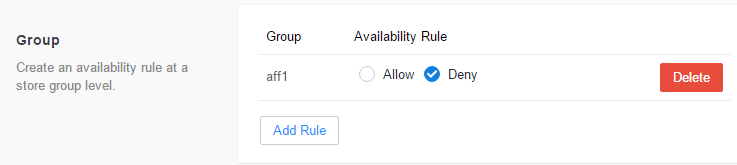
Group settings let you apply the discount to one or more store groups as an exception to the Global setting.
-
How: Select the store group(s) to include or exclude, depending on your Global default.
Why: Store groups are ideal for managing regional or brand-specific rules (e.g., apply discounts in AU/NZ stores but not US stores).
Store groups are configured under Admin → Websites → Store Groups and in website administration group settings.
Store
Store settings let you set the discount’s application on a store-by-store basis as an exception to the Global setting.
-
How: Select individual stores to include or exclude.
Why: Use this for precise control – helpful when certain affiliate stores run different promotions or have different pricing policies.
Step 3: Save your discount
- When finished, click Save.
Tip: After saving, place a small test order using quantities that cross your tier thresholds to confirm discounts apply exactly as intended.
Best-practice tips
- Protect decoration margin: if decoration costs don’t scale down, avoid discounting decoration charges by using Apply to base price only (when available).
- Choose the right counting method: “Each Line Item” for item-specific bulk pricing, “All order items” for cart-building incentives.
- Keep tiers intuitive: align thresholds to common buying patterns (e.g., 12, 24, 48, 100).
- Name discounts clearly: include the intent (e.g., “Blank Pricing”, “Team Orders”, “Merch Bulk”).
- Test edge cases: verify how mixed carts behave, especially when products differ but quantities are high.
Troubleshooting
Discount isn’t applying at checkout
- Confirm the discount is saved and appears in the Volume Discounts list.
- Check Availability to ensure the discount applies to the store you are testing.
- Verify your cart meets the correct quantity thresholds based on the selected Discounts apply over method.
Discount applies, but profit margin looks too low
- If your discount is reducing decoration charges, consider using Apply to base price only (when available for default discounts).
- Review your decoration pricing strategy to ensure setup/time costs are covered at lower quantities.
“Same design” discounts are not available
- For new users on version 8.609+, “same design” discounts may not be supported.
- If you need similar outcomes, consider using Each Line Item tiers or All order items depending on your pricing intent.
FAQs
Can I apply a volume discount to all products automatically?
Yes. Enable Is Default Discount Configuration to apply a volume discount globally across your catalog.
Do volume discounts apply to decoration charges too?
They can, depending on configuration. If you want to protect decoration margins, use Apply to base price only (don’t include decorations) when available for default discounts.
What’s the difference between “Each Line Item” and “All order items”?
Each Line Item calculates tiers separately per line item. All order items uses the total quantity across the order to determine the tier. Choose the method that best matches how you want customers to earn discounts.
Can I control which stores the discount applies to?
Yes. Use the Availability tab to set Global defaults and then apply exceptions for specific store groups or individual stores.
Additional resources
Still have questions? Use the Search Tool at the top of the page to find more related guides. Need help? Click the to submit a support – our Client Services team is ready to assist!
Still have questions? Use the Search Tool at the top of the page to find more related guides. Need help? Click the icon to submit a support ticket – our Client Services team is ready to assist!
Comments
2 comments
Volume Discount, applies to Product + Decoration.
Example: $100 for blank product + $5 for Printing = $105
If you setup 10% discount, it'll be $10.50 So $105 - $10.50 = $94.50 customer pays.
So basically you're loosing money + paying $5.50 out of pocket to buy blank garment and free printing.
I wish if they had check option says: "Apply to decoration only" not the blank shirts
Would it be possible to ad a "discounts apply over" tab to be calculated "per product".
For exemple if our client is ordering 300 Gildan soft style. 150 white tee & 150 black tees. we would like for the system to calculate the discount on the 300 units & not per line item.
Both shirts don't have the same design, so we can use the same design tab nor the all order item tabs since they're also ordering 500 black 6606 trucker caps.
The other reason why this makes sense is that on the website, the "discount grids" are shown on each product pages. Which makes it confusion when ordering since none of the discount option are calculated per product. It's either per line item, per design or whole order... We're trying to scale & make it simpler for our sales team to educate our clients but this keeps being a pain point where we're either losing money or simply confusion the clients.
Please sign in to leave a comment.