
- Log into your DecoNetwork Website.
- Browse to Admin > Settings > Customer Settings.
- Select Account Terms.

-
The main work area of the Account Terms screen shows you a list of existing account terms.
Click the image to enlarge.
- Click on the New Account Terms button.
The New Account Terms page is displayed.
Click the image to enlarge.
- Configure the account terms.
- Default tick this checkbox to set these terms to be used if the customer is an account holder, but does not have a specific set of terms selected in their account settings. If no terms are set as default, no terms will be assigned upon the creation of a quote or order.
- Name - Enter a name for the account terms. The name should be a basic description of the payment terms. E.g. 25% deposit, Net 30 days.
- Default Deposit lets you set the deposit percentage required for the order to proceed.
- Type defines the cycle of the terms with respect to when payment is due.
- Days From Invoice requires payment in days due from the day the invoice is sent to the customer.
- Days From Statement is how many days the terms apply from the issuing of the account statement.
- Days due lets you define how long the terms run for from the commencement date as set in the Type box.
- Description is a free text field that lets you describe how the terms work along with any other notes regarding the use of the terms you have set.
- When done, click Save.
Terms may be assigned to a customer in Business Hub, or assigned to a specific order or quote during creation in Business Hub.
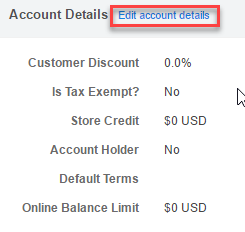
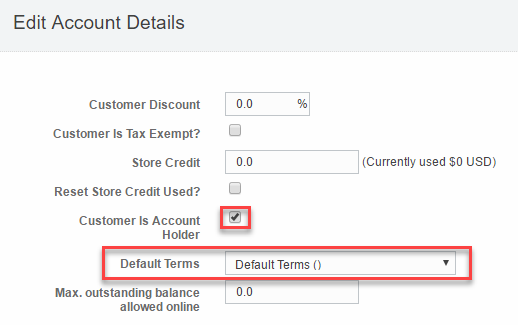
Above: Customer account details showing where to set Terms for the account in Business Hub.
Above: Terms and Conditions being set during the creation of an order.
Still have questions? Use the Search Tool at the top of the page to find more related guides. Need help? Click the icon to submit a support ticket – our Client Services team is ready to assist!
Comments
0 comments
Please sign in to leave a comment.