
In DecoNetwork, commissions are payments you make to affiliate stores (such as fundraisers, teams, influencers, or sales reps) based on the sales they generate. DecoNetwork automatically tracks orders attributed to each affiliate and calculates the commission amount owed. This report lets you view the history of those commission payouts—including bulk payment details—so you can verify what has been paid, when, and to whom.
This article explains how to view commission payment history in your DecoNetwork admin area.
In This Article
- Prerequisites
- Why view commission payment history
- Step 1: Navigate to Reports
- Step 2: Select Commission Payments
- Step 3: Choose a date range and view details
- Best-practice tips
- Troubleshooting
- FAQ
Prerequisites
- You must be logged into your DecoNetwork Admin area.
- You must have a role with permission to view Reports and Commission data.
- At least one affiliate store must be set up with commission rules enabled.
- Commissions must have been processed — only completed payouts display here.
- (Optional) If using PayPal Mass Payments, ensure your PayPal account is connected and configured.
Why view commission payment history?
Benefits:
- Keeps accurate financial records for all affiliate stores.
- Allows you to confirm exactly what commissions have been paid and when.
- Supports transparency and reduces chances of payment disputes.
- Helps with financial reconciliation, especially when using PayPal Mass Payments.
Step 1: Navigate to Reports
- Log into your DecoNetwork Website.
- Browse to Admin → Reports.

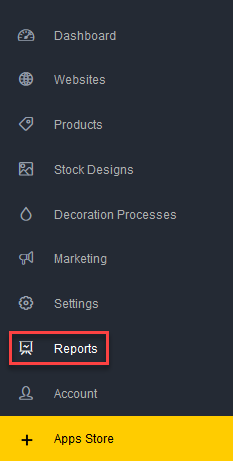
Step 2: Select Commission Payments
- Under Reports, select Commission Payments.

Step 3: Choose a date range and view details
- Select the date range for which you would like to view your Commission Payments.
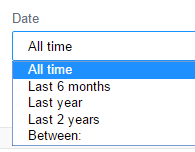
- Click Update.
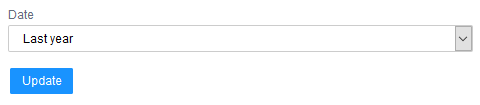
The report displays payments grouped by payout batch.
Users frequently ask how to export commissions or download a PDF copy. DecoNetwork does not generate a PDF automatically, but you can Print → Save as PDF from your browser.
- Click on the Details link to view a breakdown of the commission payments by affiliate store.
Only commissions that have been paid appear in this report. Unpaid/pending commissions are shown elsewhere.
The Bulk Payment No column displays the transaction number of the bulk payment transaction in which the commission was paid.
- Click the Bulk Payment No. link to view the transaction reference tied to the payment batch.
Best-Practice Tips
- View this report monthly to stay on top of affiliate settlements.
- Export or screenshot transactions when reconciling with external payment systems.
- Use the Bulk Payment Number as your reconciliation key for accounting systems.
Troubleshooting
- No payments appear in the report? Payments must be completed before they display in this report.
- Amounts look incorrect? Click Details to expand per-affiliate breakdowns before reconciling.
Frequently Asked Questions
- Can I view unpaid commissions from this report?
- No. This report only lists payments that have been completed.
- What is a Bulk Payment Number?
- It is the ID for a group payout. Clicking it shows the transaction reference for that payment batch.
Additional Resources
Still have questions? Use the Search Tool at the top of the page to find more related guides. Need help? Click the icon to submit a support ticket—our Client Services team is ready to assist!
Still have questions? Use the Search Tool at the top of the page to find more related guides. Need help? Click the icon to submit a support ticket – our Client Services team is ready to assist!
Comments
0 comments
Please sign in to leave a comment.