
This screen contains the production configuration options for the Embroidery decoration process. Configuring production settings to match your business processes and equipment will increase the overall efficiency of DecoNetwork and your business.
In This Article
- Prerequisites
- Why Configure Embroidery Production Settings?
- Step 1: Open Embroidery Production Settings
- Step 2: Configure Production Format Options
- Step 3: Configure Alternate Format Options
- Step 4: Save Your Settings
- Filename Format Placeholders
- Best Practices
- Troubleshooting
- FAQs
- Additional Resources
Prerequisites
- You must have administrator access to use this feature.
- Embroidery must be enabled as a decoration process you support.
Why Configure Embroidery Production Settings?
Configuring embroidery production settings allows you to select file formats and versions that match your embroidery equipment and business processes. Filename formats can also provide information used in production workflows, helping reduce manual work and improve efficiency.
Step 1: Open Embroidery Production Settings
- Log into your DecoNetwork Website.
-
Browse to Admin → Decoration Processes.
Select the Admin button.
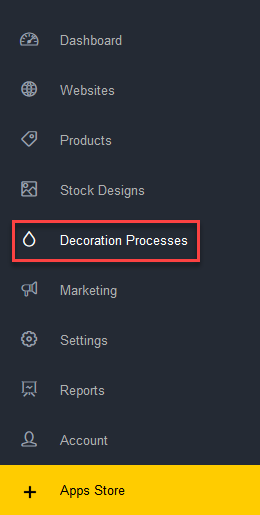
Select Decoration Processes.
-
Select Embroidery, then click Production Settings.
Select Production Settings for Embroidery.
The production settings for embroidery will be shown in the main work area.
Step 2: Configure Production Format Options
Configure the following settings under Production Format Options.
- File format: Lets you select the file format you want production files to be output to. By default, DecoNetwork will output to Wilcom Embroidery Files for production (*.emb). You can change the production file format to Melco (*.exp) or Tajima (*.dst).
-
Version: Lets you select which version of EMB you want embroidery production files to be output to. (Only available if Wilcom Embroidery File format is selected.)
Production Format Options settings.
-
Filename Format lets you specify a format for the filename using variable placeholders that will send the required information to your embroidery machine and automate options such as machine selection, hoop size, and size and positioning in the hoop for automated workflows.
See Filename Format Placeholders for the available variables.
Step 3: Configure Alternate Format Options
Configure the following settings under Alternate Format Options.
- File format: Lets you select the format you want to output files to for editing. By default, DecoNetwork will output Wilcom Embroidery Files for editing (*.emb). You can change the file format to Melco (*.exp) or Tajima (*.dst).
-
Version: Lets you select which version of EMB you want embroidery files to be output to for editing. (Only available if Wilcom Embroidery File format is selected.)
Alternate Format Options settings.
-
Filename Format lets you specify a format for the filename using variable placeholders that will send the required information to your embroidery machine and automate options such as machine selection, hoop size, and size and positioning in the hoop for automated workflows.
The same placeholder options are available for both production and alternate file formats. See Filename Format Placeholders.
Step 4: Save Your Settings
- Click Save when finished.
Filename Format Placeholders
The following variable placeholders are available for the Filename Format field under both Production Format Options and Alternate Format Options.
Order and Item Information
- [ORDER_ID]: Returns the invoice number of the order.
- [ITEM_ID]: Returns the unique identifying number of a line item.
- [LINEITEM_QTY]: Returns the quantity of an item ordered.
- [LINEITEM_SIZES]: Returns the sizes of each item ordered.
Product Information
- [PRODUCT_COLOR]: Returns the name of a product color.
- [PRODUCT_COLOR_TYPE]: Returns the color category the color is in: light, white, or dark.
- [PRODUCT_CODE]: Returns the identifying code of a product.
- [PRODUCT_BRAND]: Returns the brand name of a product.
Decoration and Design Information
- [VIEW_NAME]: Returns the name of a product view.
- [AREA_NAME]: Returns the name of a product view area.
- [PROCESS_ABBR]: Returns the abbreviation of a decoration process.
- [PROCESS_NAME]: Returns the name of a decoration process.
- [DESIGN_NAMES]: Returns the names of each design added to a blank product.
Order Status Information
- [ORDER_PAY_REQ_ME]: Returns true or false to indicate if the order has been paid.
- [ORDER_ART_APPROVED]: Returns true or false to indicate if the artwork for the order has been approved.
Note, if the data for a variable does not exist, the variable will be left out of the filename.
Best Practices
- Select a production file format and version that match the requirements of your embroidery equipment and software.
- Use relevant filename placeholders to include order, product, or decoration details that help identify production files.
- Check the generated filenames when setting up an automated embroidery workflow.
Troubleshooting
The Version Option Is Not Available
Problem: You cannot select a version for the embroidery file.
Cause: The Version setting is available only when the Wilcom Embroidery File format is selected.
Solution: Check the selected File format. Select the Wilcom Embroidery File format if you need to specify an EMB version.
A Variable Is Missing from the Filename
Problem: A generated filename does not include the expected variable information.
Cause: The data for the variable does not exist.
Solution: Check whether the relevant order, item, product, or design information is available. Variables without data are left out of the filename.
FAQs
What File Formats Are Available for Embroidery Production?
DecoNetwork supports Wilcom Embroidery Files (*.emb), Melco (*.exp), and Tajima (*.dst). Wilcom is the default format.
What Is the Difference Between Production Format Options and Alternate Format Options?
Production Format Options control the files output for production, while Alternate Format Options control the files output for editing.
Can I Use the Same Filename Placeholders for Both Formats?
Yes. The same filename placeholders are available under Production Format Options and Alternate Format Options.
Additional Resources
Still have questions? In your DecoNetwork Admin, use the Universal Search box in the top bar to find more related help guides. Need more help? Click the icon next to the search box to open the help menu and submit a support ticket. Our Client Services team is ready to assist!
Comments
0 comments
Please sign in to leave a comment.