
Minimum quantity settings put a floor limit on how many units of a product a customer can order, and bundle sizes let you sell a product only in fixed package sizes. Both settings help you protect production runs that aren't cost effective in small volumes. Minimum quantity requirements are checked when a customer proceeds to checkout, so quantities added across different colors, sizes, or other variants of the same product all count toward the minimum.
In This Article
- Prerequisites
- Why use this feature?
- Step 1: Open the Minimum Quantities and Bundles settings
- Step 2: Set the minimum quantity
- Step 3: Configure bundle sizes
- Step 4: Save your changes
- Best Practices
- Troubleshooting
- FAQs
- Additional Resources
Prerequisites
- You must have Admin access to use this feature.
Why use this feature?
Minimum quantity settings protect your margins on products where a small order isn't worth producing, and bundle sizes let you match your packaging or shipping requirements. When you set a minimum quantity on a product, a customer's combined order for that product, across every color, size, or other variant they've added to their cart, must reach the minimum before they can complete checkout. This gives customers the flexibility to mix variants of the same product to reach your minimum, rather than forcing the full minimum into a single line item.
If the combined quantity doesn't reach the minimum by the time the customer proceeds to checkout, checkout is blocked until they adjust their quantities, so you never fulfill an order that falls short of your production threshold. Bundle sizes work alongside this by requiring units to be purchased in fixed pack sizes, such as 6, 12, or 24, rather than any arbitrary quantity.
Step 1: Open the Minimum Quantities and Bundles settings
- Log into your DecoNetwork Website.
-
Browse to Admin > Products.
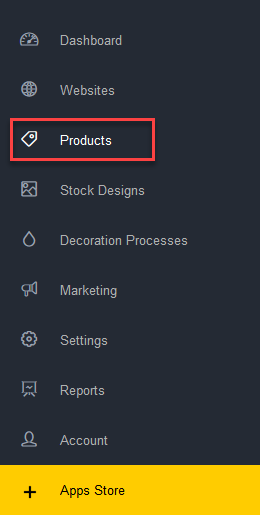
Selecting Products from the Admin menu.
-
Select the product to configure by clicking its product code, its product name, or the Manage button beside it followed by Edit Product.
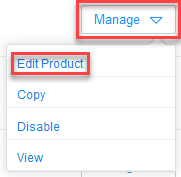
Selecting Edit Product from the Manage dropdown.
The product properties open in the main work area, with a menu on the left to select property categories. General is selected by default.
-
Select Minimum Quantities and Bundles from the product properties menu.
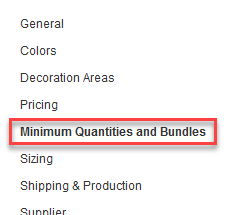
The Minimum Quantities and Bundles option in the product properties menu.
The main work area now shows the configuration options for minimum quantities and bundles.
Step 2: Set the minimum quantity
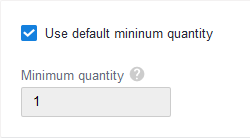
Minimum quantity configuration for a product.
A customer cannot check out with fewer than this quantity of the product in their cart. Leave Use default minimum quantity ticked to use the default, or untick it to specify a custom minimum for this product. The default is set via Admin > Products > Product Groups > Edit [Product Group] > Minimum Quantity (see the General tab for the default group this product belongs to).
Step 3: Configure bundle sizes
Bundle sizes limit a product to being sold only in packages of a specific number of items. By default, bundles are set at 1 item per package, but this can be changed to suit your business practices.
-
Use Incremental bundles uses the number you enter for Maximum number of products that fit into the above package as a fixed increment added to the minimum quantity to form each successive bundle size.
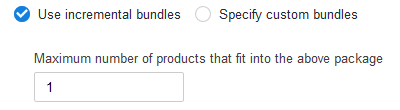
Configuring incremental bundle sizes.
When set to 1 (the default), a bundle can effectively be any size, meaning the customer can order any quantity they wish. If set to 10, while the minimum quantity is set to 1, bundle sizes become 11, 21, 31, 41, and so on. For neat multiples, match the minimum quantity to the incremental number, for example a minimum quantity of 10 with an increment of 10 gives bundle sizes of 10, 20, 30, 40, and so on.
-
Specify custom bundles lets you determine the exact size of each bundle, useful if you're not offering bundles that are neat factors of smaller numbers, for example bundles of 1, 5, 20, 50, 100. Use Add Bundle Size to add a new bundle size, and Remove to remove one.
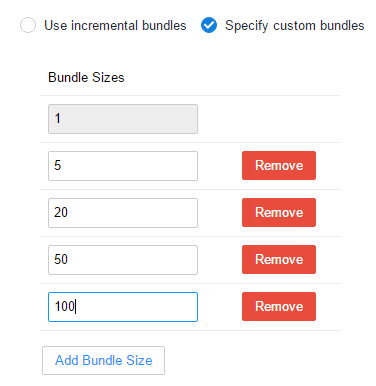
Configuring custom bundle sizes.
Step 4: Save your changes
Click Save or Save and Continue when you're done. Your minimum quantity and bundle settings apply the next time this product is added to a cart.
Best Practices
- Base minimum quantities on your real production breakeven point (setup time, materials, decoration costs) rather than an arbitrary round number.
- Pair bundle sizes with a matching price breakdown so bulk pricing rewards customers for ordering in your preferred pack sizes.
- If a product uses a decoration process with its own minimum quantity, review both settings together since a customer's order must satisfy both at checkout.
- After changing a minimum quantity, test the storefront by adding fewer than the minimum in one variant and topping up with a different color or size of the same product, to confirm checkout combines the quantities as expected.
Troubleshooting
Problem: A customer sees a message that they cannot proceed to checkout because the minimum quantity requirement isn't met, even though they've added several items to their cart.
Cause: The combined quantity of that product across all its cart lines, different colors, sizes, or other variants, hasn't reached the minimum quantity configured on the product.
Solution: Have the customer increase the quantity of any variant of that product already in their cart, or add more variants of the same product, until the combined total meets the minimum. If the minimum is consistently too high for your typical order sizes, lower it in Minimum Quantities and Bundles.
Problem: Bundle sizes don't form neat multiples of the minimum quantity, for example 11, 21, 31 instead of 10, 20, 30.
Cause: Use Incremental bundles adds your specified number to the minimum quantity to build each bundle size, so the two values need to match for clean multiples.
Solution: Set the minimum quantity and the incremental bundle number to the same value, or switch to Specify custom bundles to define exact bundle sizes.
FAQs
Can a customer combine different colors or sizes of the same product to reach the minimum quantity?
Yes. Every cart line for the same product, regardless of color, size, or other variant, is combined and checked against the minimum quantity when the customer proceeds to checkout.
Is the minimum quantity enforced when the product is added to the cart, or at checkout?
At checkout. Customers can add any quantity of the product to their cart, and the combined total is validated once they attempt to complete their order.
Does the product minimum quantity work independently of decoration process minimums?
No. If the product also uses a decoration process with its own minimum quantity setting, both the product minimum and the decoration process minimum are checked together at checkout.
Do bundle sizes affect pricing?
Not directly. Configure a price breakdown that matches your bundle sizes if you want to make bulk quantities more attractive.
Additional Resources
Still have questions? Use the Search Tool at the top of the page to find more related guides. Need help? Click the icon to submit a support ticket – our Client Services team is ready to assist!
Comments
0 comments
Please sign in to leave a comment.