
The Request a Quote page lets customers browse your products, choose what they need, and submit a pricing request instead of placing a direct order, so your team can price and respond manually. Configuring its settings in the Website Editor controls what customers see and provide when they submit a request. Because the system retains these settings, every request submitted afterward follows the same rules and flows straight into Business Hub for your team to review, price, and send back.
In This Article
- Prerequisites
- Why use this feature?
- Step 1: Open the Request a Quote form settings
- Step 2: Configure the Product Selector
- Step 3: Configure Captcha protection
- Step 4: Configure Fields
- Step 5: Configure General button labels
- Step 6: Save and publish your changes
- Best Practices
- Troubleshooting
- FAQs
- Additional Resources
Prerequisites
- You must have Admin, Websites Manager, or Web Developer access.
- You must be on the Premium or Enterprise plan.
- Request a Quote must already be enabled for your website under Admin → Websites → Manage [Site] → Administration → Request Quote Settings.
Why use this feature?
Configuring the Request a Quote form controls what customers can select, what information they need to provide, and how well the form is protected from bots and spam, before a request ever reaches you. Because the system retains whatever you configure here, every quote request submitted afterward collects the same information and follows the same rules automatically, so you set it up once and it keeps working.
- Control which products customers can browse and choose from when requesting a quote, using the Product Selector settings
- Reduce spam and fake requests reaching Business Hub with reCaptcha protection
- Collect the specifics you need up front, such as a delivery date or extra project details, so requests are easier to price accurately
- Match button labels to your own terminology so the form feels like part of your site
- Every submitted request appears automatically in Business Hub on the Quotes page, ready for your team to review, price, and send
Step 1: Open the Request a Quote form settings
-
In the Website Editor, click PAGES in the toolbar.
The Pages tab opens, listing the pages on your website.
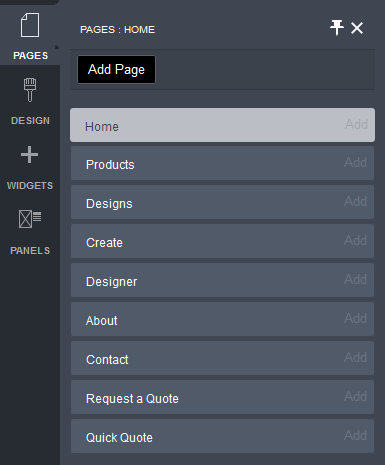
The Pages button in the Website Editor toolbar.
-
Click the Request a Quote page tab.
The Request a Quote page opens in the content area.
-
Double-click the form within the content area.
The Request Quote Properties popup opens, where you configure the Product Selector, Captcha, Fields, and General settings.
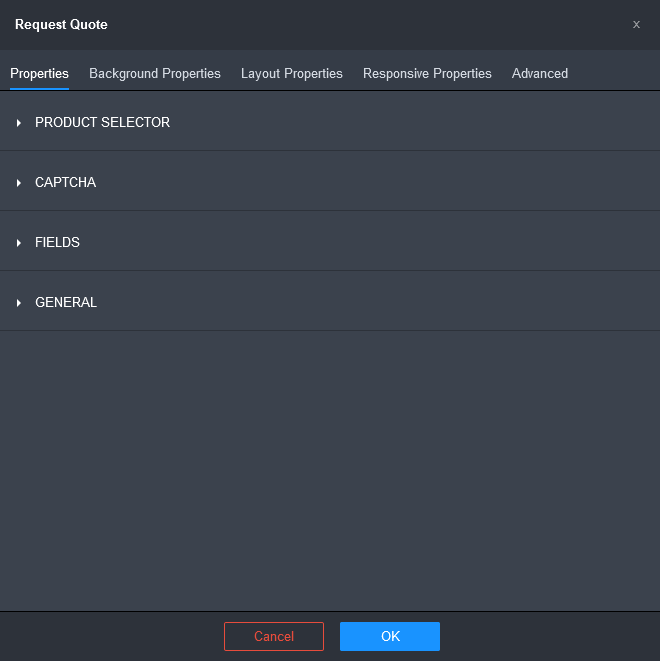
The Request Quote Properties popup.
You can't customize the layout of the Request a Quote form directly. If you need to collect additional information, create custom customer fields and choose whether they appear on the form using the Customer Fields settings in your Fulfillment Center Admin.
Step 2: Configure the Product Selector
The Product Selector settings control how customers browse and choose products before submitting their request.
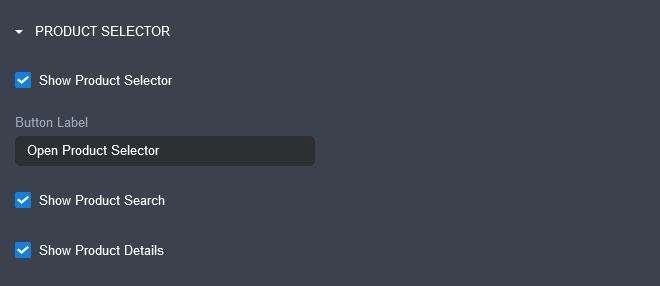
The Product Selector settings in the Request Quote Properties popup.
- Show Product Selector: enable or disable the product selector on the form.
- Button Label: change the text shown on the button that opens the product selector (defaults to "Open Product Selector").
-
Show Product Search: show or hide the search box customers can use to find products in the selector.

The product search box, shown when Show Product Search is enabled.
-
Show Product Details: choose whether customers see full product details. If the checkbox is un-ticked only product names are shown in the selector.
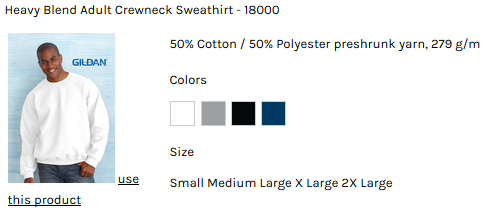
The Product Selector with full product details shown.

The Product Selector with product names only shown.
Step 3: Configure Captcha protection
The Captcha settings enable Google's reCaptcha to help protect the form from bots. When enabled, anyone submitting the form is required to complete verification first.
-
Enable Captcha to require reCaptcha verification before a request can be submitted.

The Captcha toggle in the Request Quote Properties popup.
-
Optionally, enter your own Google API Site Key and Secret Key. These fields appear once Captcha is enabled and are useful if you're integrating the form with a programmatic or custom submission process.
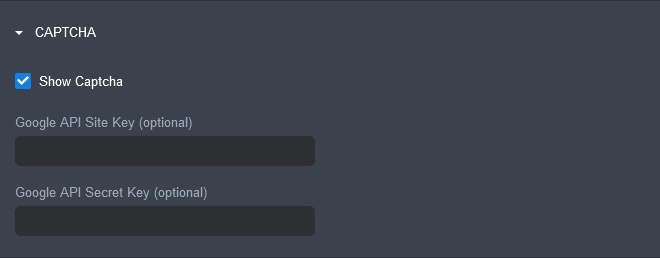
The Google API Site Key and Secret Key fields, shown once Captcha is enabled.
Once published, the reCaptcha control appears on the live form for customers to complete before submitting a request.
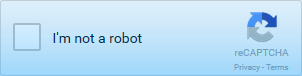
The reCaptcha control as it appears to customers on the live form.
Step 4: Configure Fields
-
Expand the FIELDS row to enable extra fields in the the Request a Quote form.
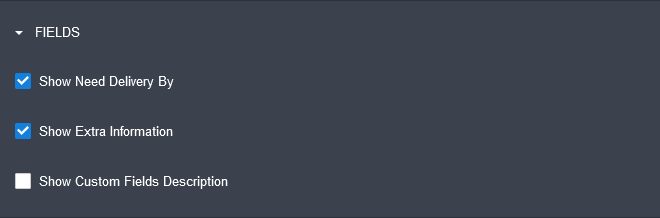
The Fields settings in the Request Quote Properties popup.
- Show Need Delivery By: adds a date picker field so customers can specify when they need the order delivered.
- Show Extra Information: adds a free-text field so customers can add extra details about their request.
-
Show Custom Fields Description: displays the description text for any custom fields you've configured to appear on this form.
Show Custom Fields Description only affects custom fields you've already created and set to appear on this form. Create and manage these under Customer Fields in your Fulfillment Center Admin.
Step 5: Configure General button labels
-
Expand the GENERAL row to specify custom labels for the buttons in the the Request a Quote form.
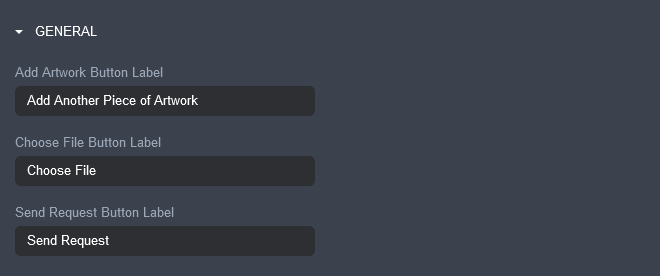
The General settings in the Request Quote Properties popup.
- Add Artwork Button: sets the label for the button customers use to attach artwork.
- Choose File Button: sets the label for the button customers use to choose a file to upload.
- Send Request Button: sets the label for the button customers click to submit their request.
Step 6: Save and publish your changes
- Click OK to close the popup and save your settings in the editor.
-
Click Save, then Publish.
Your changes go live on your website. When a customer submits a quote request, a quote is generated automatically and appears in Business Hub on the Quotes page with the status Quote Requested, ready for your team to review, price, and send back to the customer.
Best Practices
- Enable Captcha to keep spam and bot-generated requests out of your Quotes page in Business Hub.
- Only turn on the Fields you actually need information for, such as Show Need Delivery By or Show Extra Information, to keep the form quick for customers to complete.
- Use Show Product Details when customers need to see full product information before requesting a quote, and switch to names only for a faster, simpler selector once your catalog is well known to your customers.
- Create custom customer fields via Customer Fields in Fulfillment Center Admin for anything the standard Fields don't cover, and enable Show Custom Fields Description so customers understand what's being asked of them.
- After publishing, submit a test quote request yourself to confirm it arrives correctly in Business Hub on the Quotes page.
Troubleshooting
Problem: Changes made in the Request Quote Properties popup aren't showing on the live website.
Cause: Clicking OK only saves changes in the editor.
Solution: After clicking OK, click Save and then Publish to push the changes live.
Problem: Customers can't find a way to request a quote anywhere on the website.
Cause: Request a Quote hasn't been enabled for the site, or Allow Request Quote is set to a restrictive option.
Solution: Go to Admin → Websites → Manage [Site] → Administration → Request Quote Settings and check the Allow Request Quote dropdown.
Problem: A submitted quote request doesn't include information your team needs to price it.
Cause: The relevant Field, such as Show Need Delivery By or Show Extra Information, isn't enabled, or a needed custom field isn't set to appear on the form.
Solution: Enable the relevant option under Fields, or create and enable a custom field via Customer Fields in Fulfillment Center Admin.
Problem: A programmatic or custom form submission process isn't passing Captcha verification.
Cause: The default reCaptcha configuration is active instead of your own Google API Site Key and Secret Key.
Solution: Enter your own Google API Site Key and Secret Key in the Captcha settings.
FAQs
Can I change the layout or add my own fields to the Request a Quote form?
Not directly. The form's layout is fixed, but you can create custom customer fields and choose whether they appear on the form using the Customer Fields settings in your Fulfillment Center Admin.
What happens after a customer submits a quote request?
A quote is generated automatically and appears in Business Hub on the Quotes page with the status Quote Requested, where you can edit it and send it directly to the customer.
What's the difference between Show Product Details and showing product names only?
Show Product Details displays full product information in the Product Selector. Turning it off shows only product names, giving customers a shorter, simpler list to choose from.
Do I need to enter my own Google API Site Key and Secret Key for Captcha?
No, it's optional. Enter your own keys only if you're integrating a programmatic or custom form submission process. Otherwise, DecoNetwork's default reCaptcha configuration protects the form.
Is this the same as Quote Mode?
No. Quote Mode turns your entire storefront into a quote-based checkout, where customers build a cart and submit it as a quote instead of paying online. The Request a Quote page is a separate, dedicated form customers can use at any time to ask for pricing. See How Do I Enable Quote Mode? in Additional Resources.
Additional Resources
Still have questions? Use the Search Tool at the top of the page to find more related guides. Need help? Click the icon to submit a support ticket – our Client Services team is ready to assist!
Comments
9 comments
Can multiple products be added within the request a quote?
Hi Marcel,
Currently, the request a quote form only supports one product.
Can I pick the fields that they fill out?
Hi Andrew,
You can create customer fields and specify if they appear in the Request a Quote form via Admin > Settings > Customer Settings > Customer Fields. Please read the Customer Fields help article for instructions on how to create custom customer fields and how to define their usage.
How do I get the page back if it has been accidentally deleted.. looks like I may of pressed delete instead of turning it off cos it no longer shows on my drop down menu and can’t figure out how to get it back
Hi Jonathan,
The Request A Quote page is a system page, so it cannot be deleted. Can you please submit a support ticket so that our client services team can help you investigate why it is missing.
how do I get the description of a custom field to show in the quote form?
Hi Daniel,
At the moment there is no way to show the description. A development request has been submitted to add this feature.
Is there no API for quotes? The request quote form being limited to only one product is not ideal at all. I wanted to create my own form and send the data into DecoNetwork via an API, but it doesn't seem like that is an option.
Please sign in to leave a comment.