
Learning to configure quotes, orders, and invoices in DecoNetwork is crucial for tailoring your business operations. These documents are essential for customer interactions and transactions, and DecoNetwork offers extensive customization options to align them with your business practices.
This tutorial focuses on setting up quotes, orders, and invoices at a foundational level. It covers key settings such as numbering systems, validity dates, and other critical features that affect how these documents are managed within DecoNetwork.
Note that this tutorial covers operational configurations and does not address customizing document content. For instructions on customizing the content of quotes, orders, and invoices, consult the related help article titled "Email and Order Templates".
Watch the following video to see how to configure quote, order, and invoice settings, and read below for instructions.
In this article
- Prerequisites
- Why Use These Settings
- Step 1: Navigate to the Settings
- Step 2: Configure the Settings
- Best-Practice Tips
- Troubleshooting
- FAQs
- Additional Resources
Prerequisites
- Administrator access to DecoNetwork Admin.
Why Use These Settings
Configuring these settings ensures that all quotes, orders, and invoices align with your operational and branding needs. Clear, standardized formatting benefits both staff and customers by:
- Maintaining consistency across the storefront, Business Hub, and all documents
- Standardizing numbering for professional, traceable records
- Minimizing errors and confusion during quoting, invoicing, and order review processes
Step 1: Navigate to the Settings
- Log into your DecoNetwork Website.
- Browse to Admin > Settings.
-
Select Quote, Order and Invoice Settings.
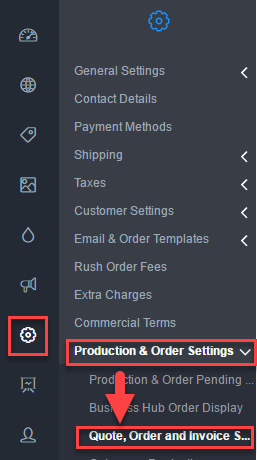
The settings are displayed in the main work area.
Click the image to enlarge.
Step 2: Configure the Settings
-
Configure the Quote, Order and Invoice Number Settings.
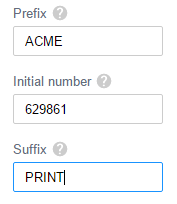
- Prefix: Text or characters added at the beginning of your document numbers.
- Initial number: Starting number following the prefix for quotes, orders, and invoices.
- Suffix: Text or characters added at the end of document numbers.
-
Configure the Quote Settings.
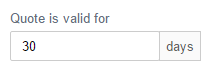
- Quote is valid for: Number of days the quoted price remains valid.
-
Configure the Quote and Order Settings.

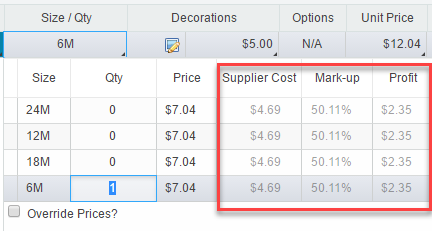
- Hide supplier cost in Business Hub: prevents Business Hub operators from seeing the cost and profit of goods being sold in a quote or order. This information is found by viewing an order in edit mode and clicking in the Size / Qty field in an order line.
-
Configure the Business Hub Price Rounding Settings
-
Apply store price rounding in Business Hub: Tick this checkbox to turn on price rounding for Business Hub orders. If this setting is turned on, all new Business Hub orders will use the pricing rounding rules of the customer's store.
For a Business Hub order that has been saved with this setting turned on, switching the store directly or switching the store by changing the customer will re-price the order based on the newly selected store.
Copying an order in BH will apply the current price rounding rules, i.e. if the original order did not have price rounding applied then the copied order will.
-
-
Configure the Business Hub & Order Document Price Display Format Settings
New feature added in V8.610.This feature lets you standardize how prices appear in Business Hub and on quote/order/invoice documents. Choose your preferred format:
- $15.50: Currency symbol before amount
- 15.50: Amount only, no currency symbol
- 15.50$: Currency symbol after amount
-
Configure the Business Hub Orders - Default Store Settings

-
Store: sets which affiliate store will be used for branding and price settings for any orders placed through Business Hub. It is not a requirement to set this, in which case all settings and configurations will be as per Fulfillment Center defaults. If you have set up a "main store" it may have different pricing to the Fulfillment Center's default configuration, and thus orders placed through Business Hub will not match your main store.
Click Select Store to set an affiliate web store as the default store for all Business Hub orders.
-
-
Configure the Order Invoiced Settings
- Do not automatically mark internet orders as invoiced: tick this checkbox if you do not want Internet orders to be automatically marked as invoiced. When this option is enabled, Internet orders will be invoiced when they are marked as shipped. When the option is not enabled, Internet orders, except those submitted on account terms, will automatically be marked as invoiced.
- Do not automatically mark orders as invoiced once completed (produced/shipped): tick this option if you want orders to remain uninvoiced until the FC views the order and manually marks it as invoiced.
-
Configure the Order Shipping Address Settings
-
Allow customer to change order shipping address: select an option to allow customers to change the shipping address for an order from the customer account area.
- Never: select this option if you do not want to allow customers to change the shipping address for an order after it has been placed.
- Until order is ready for production: select this option if you want to allow customers to change the shipping address up until the order is ready for production.
- Until order production is complete: select this option if you want to allow customers to change the shipping address until the production of the order is complete.
Note: The customer must be logged in to their account. Shipping address changes can only be made for orders that belong to the currently logged-in user.
-
-
Configure the Production Settings
- Allow orders not yet paid to appear in production: tick this checkbox if you want orders that have not yet been paid for to appear in the "Not ready for Production" tab in the Production List. Unpaid orders will also appear in the Production Calendar. If the checkbox is un-ticked, orders will not appear in the Production List or Production Calendar until the order has been paid
-
Configure the Artwork Approval Settings
- Allow quotes and orders not yet paid to have artwork appear in artwork approval: tick this checkbox if you want artwork jobs from quotes and orders that have not yet been paid for to appear in Artwork Approvals. If the checkbox is un-ticked, artwork jobs will not appear until the quote or order has been paid for.
-
Enable order artwork approval for all orders submitted via webstore checkout containing decorated items: tick this checkbox if you want an Order Artwork Approval to be created automatically by default when an Internet order has any customized items. If this setting is ticked, then Internet orders will have the "Order artwork requires approval" option ticked when opened in Business Hub.
Note that this setting does not apply to orders created in Business Hub.
If a customer reorders from a past purchase that contains a previously approved artwork, the new order will flow through the artwork approval stage and will need re-approval if this setting is enabled.
You can override this setting at the store level on the Administration > Artwork Approvals page. See the help article, Store Artwork Approval Settings, for instructions.
-
Configure the Quote & Order Search Settings
- Include closed quotes/orders when searching under open quotes/orders in Business Hub: tick this checkbox if you want closed orders to be included in the search results when searching for orders under the open tab. This makes it convenient to search for closed orders without having to change tabs.
- Click Save to apply the changes.
Best-Practice Tips
- Choose the price format that matches your storefront for a seamless customer experience.
- Use prefixes and suffixes in numbering to differentiate between stores or order types.
- Regularly review these settings to ensure they align with your accounting and branding standards.
Troubleshooting
-
Problem: Prices in Business Hub do not match storefront.
Solution: Confirm that the Business Hub & order document price display format matches your storefront’s display setting. -
Problem: Document numbers are duplicating.
Solution: Adjust the Initial Number field to continue from your latest sequence.
FAQs
-
Q: Does changing the price display format affect past quotes and orders?
A: No. The new format only applies to newly created documents in Business Hub. -
Q: Can I set different formats for different stores?
A: No. The setting applies globally across your DecoNetwork account. -
Q: Will rounding rules also apply to invoices?
A: Yes. If enabled, rounding is applied consistently across quotes, orders, and invoices.
Additional Resources
Still have questions? Use the Search Tool at the top of the page to find more related guides. Need help? Click the icon to submit a support ticket—our Client Services team is ready to assist!
Comments
0 comments
Please sign in to leave a comment.